
 Multi-Platform & Fast SetupConnect ChatGPT, Claude, Gemini, or Grok to AutoCount in minutes. Simple setup with no coding required—ready to use right away.
 Official Pricing, No Added CostsUse your current AI subscription quota directly, and pay official rates for WhatsApp. No token markup, no middleman fees.
 Multi-Server & Multi-PCLink multiple Account Books distributed across different servers and host PCs simultaneously. Manage and query ledger data across companies in one unified AI chat.
 Up to 10 Users per Account BookEach licensed Account Book accommodates up to 10 concurrent team members, allowing business owners, managers, and accountants to collaborate effortlessly.
Current AutoCount AI Agent Offers


Connect AutoCount to Your Favorite AI
Connect AutoCount to your favorite AI apps. Ask questions in plain language and retrieve reports on demand.
What AI Agent Can Do
Experience real-time synchronization between your favorite mobile AI assistant and AutoCount Accounting on your desktop PC.


AI Query & Document Export
Ask financial questions in plain language, check debtor aging, and export official reports and documents in any format on demand.
Check debtor aging, overdue customer balances, daily sales figures, top-selling items, and real-time stock levels across locations. Ask follow-up questions to drill down into specific transactions through any MCP-supported AI assistant.
Generate official AutoCount reports in PDF and export any data to Excel or custom formats on demand.
Query figures and combine official AutoCount documents across multiple Account Books simultaneously. Merge multi-company reports, compare group sales figures, and generate consolidated debtor statements or invoice batches into a single file.
Supports up to 10 concurrent team members per Account Book for simultaneous AI queries and reports.
Setup Sequence & AutoCount Menu
Please contact the KSL Support Team to assist with installing the AutoCount Plugin on your system. Once installed, a new AI Agent menu appears on your AutoCount menu bar. The menu items are organized in the exact order of setup — simply follow the sequence from top to down:
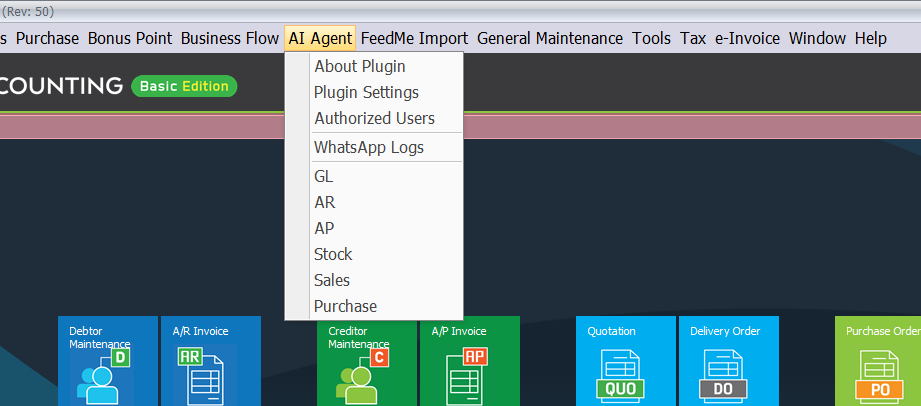
AutoCount AI Agent menu: About Plugin, Plugin Settings, Authorized Users, WhatsApp Logs, and Accounting Modules (GL, AR, AP, Stock, Sales, Purchase)
Access Right Settings
AutoCount AI Agent integrates natively with AutoCount Access Rights Maintenance. The ADMIN user is granted full access rights automatically by default upon plugin initialization.
Steps to Configure Access Rights in AutoCount
- Open Plugin Settings: Restricts access to sensitive cloud gateway endpoints, storage, and retention configurations.
- Manage Authorized Users: Restricts adding, managing, revoking, and deleting AI Agent authorized users and their book-level module access.
- Open WhatsApp Logs: Restricts viewing customer WhatsApp document delivery history, delivery statuses, and audit logs.
- Module Inboxes: Control access to individual module inboxes:
Open GL Inbox,Open AR Inbox,Open AP Inbox,Open Stock Inbox,Open Sales Inbox, andOpen Purchase Inbox.
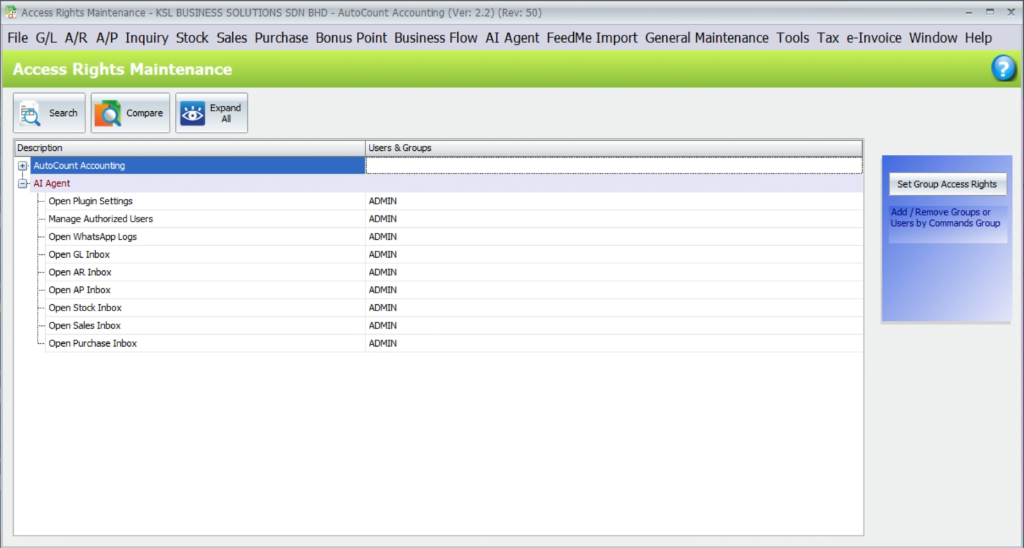
AutoCount Access Rights Maintenance: Configure permissions for Plugin Settings, Authorized Users, WhatsApp Logs, and Module Inboxes
About Plugin & License Activation
Go to AI Agent > About Plugin to view plugin details, inspect dealer and license information, and activate or update your license.
Activation Steps
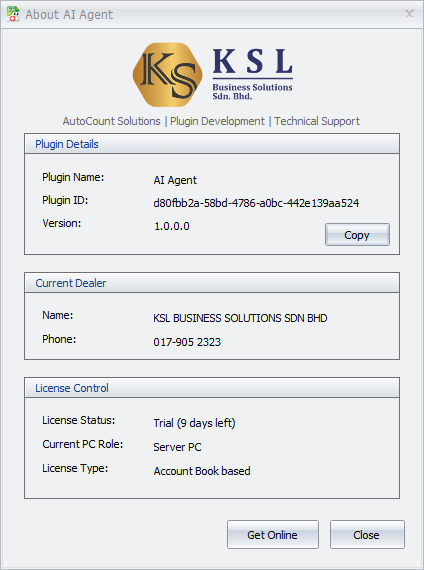
About Plugin: License details, dealer verification, hardware fingerprinting, and Get Online activation
Account Book-Based Coverage
- Account Book License: Independent license per AutoCount Account Book with full multi-server and multi-PC support.
- Up to 10 Users: Each licensed Account Book supports up to 10 active authorized team members.
- 10 GB Cloud Storage: Includes 10 GB of cloud storage with automated cleanup for download links and references. Extra storage can be added at RM 90 per year for 10 GB, which is only RM 7.50 per month.
- Annual Subscription: Predictable annual subscription with continuous cloud connectivity, security updates, and official API support.
30-Day Free Trial
Evaluate full AutoCount AI Agent capabilities risk-free with an instant 30-day trial activated directly via Get Online.
Hardware & Server Migration
Need to migrate to a new server or upgrade your PC? Hardware migration is fully supported. Contact KSL Support Team for server transfer assistance.
Plugin Settings
Go to AI Agent > Plugin Settings to inspect live background diagnostics, configure document retention policies, and manage your WhatsApp Business connection.
Agent Diagnostics & Connection
- Agent Service: Shows whether the local AI Agent background service is active and running.
- Cloud Gateway: Checks the secure connection between your computer and the AI cloud service.
- Account Book Auth: Confirms that your current AutoCount company account book is authorized.
- Cloud Storage: Each account book includes 10 GB of cloud storage for document exports and report queries. Download links and reference files are automatically cleaned up to free up space. If you need more capacity, additional 10 GB storage is available at RM 90 per year, which is just RM 7.50 per month.
Inbox & WhatsApp Logs Retention
- Inbox Retention: Set how many months to keep processed drafts and WhatsApp history, such as 12 months. Older records are automatically cleaned up.
- Reference Retention: Set how long to keep original uploaded documents and attachments.
- Unapproved Documents Expiry: Automatically clears pending drafts that have not been approved after a set number of days, such as 30 days, to keep your inbox tidy.
WhatsApp Business Connection
- Connect Official WhatsApp: Click "Connect New" to log in and link your official WhatsApp Business phone number in a few simple clicks.
- Shared Number: Pick an already connected company WhatsApp number from the list to use for this account book immediately.
- Status & Disconnect: View real-time connection status anytime, or disconnect whenever you need to switch numbers.
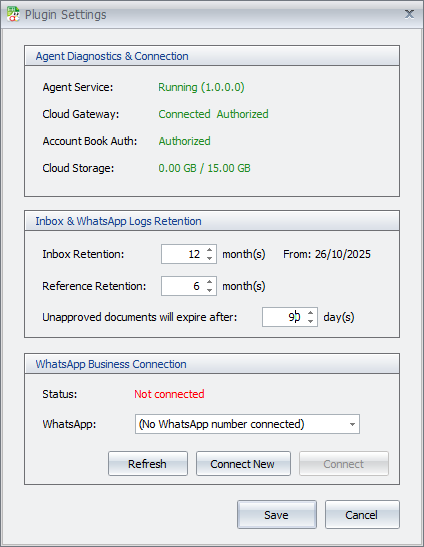
Plugin Settings: Agent diagnostics, data retention policies, and official WhatsApp Business connection
Authorized Users
Go to AI Agent > Authorized Users to manage team members authorized to query this Account Book and configure module permissions.
Account Book Access
- User Email & Roles: Enter the user email address and choose a preset role such as Full Access, Sales, Purchasing, Inventory, Accountant, or Read Only.
- Module Permissions: Choose what each user can access across Sales, Purchase, Stock, and Accounting. You can grant Read access to view records and reports, Inbox Draft access to submit entries for review, or both.
- AutoCount POS Support: Automatically detects if your company uses AutoCount POS and lets you enable POS queries.
- Authorize User: Click "Authorize User" to save permissions and grant access to the user.
Authorized Users
- Up to 10 Users: Each licensed account book supports up to 10 active authorized team members.
- Linked AI Platforms: View which AI apps each user has connected, such as ChatGPT, Claude, Gemini, or WhatsApp.
- Revoke & Delete: Temporarily pause user access with Revoke, or remove an account permanently with Delete to free up a user seat anytime.
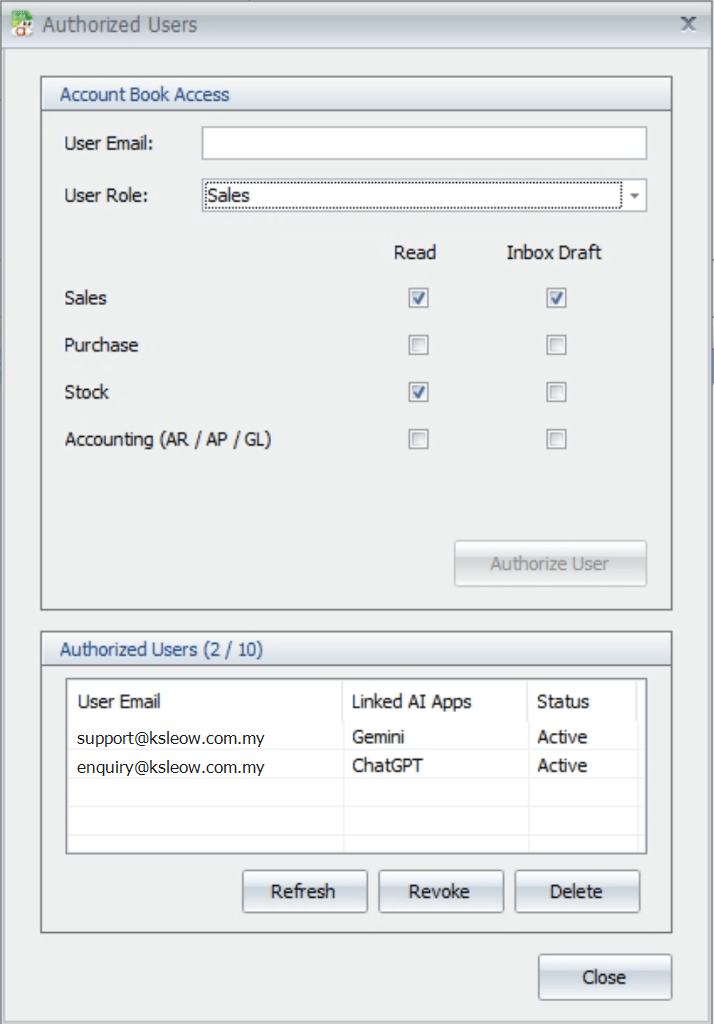
Authorized Users: Account Book Access module permissions, preset roles, and user management
AutoCount AI Agent — Terms of Use
By installing or using the AutoCount AI Agent ("the Software"), you agree to these Terms.
Scope of Service
Assisted productivity tool for AutoCount Accounting.
Human Review & Accounting Disclaimer
Mandatory human review safeguards and user verification responsibility.
Third-Party AI & WhatsApp Services
Connected platform compliance and messaging rules.
Data Privacy: Zero Accounting Data Retention
Zero financial data retention guarantee and local database security.
Acceptable Use & License
Active license requirements and anti-tamper compliance.
Limitation of Liability
Warranty disclaimers and maximum liability limits.
AutoCount AI Agent
Contact KSL Support Team to register your interest or learn more about the AutoCount AI Agent plugin.