
Setup Sequence & AutoCount Menu
Download the plugin from the button above. After installation, a new DKSH Integration ribbon tab appears at the top of AutoCount Accounting. The plugin menu is organized in the exact order of setup — simply follow the sequence from top to down:
DKSH Integration menu items arranged in setup sequence: About Plugin, Plugin Setting, Item Code Mapping, and Posting Log
About Plugin & License Activation
Go to DKSH Integration > About Plugin to view plugin details, inspect dealer information, and activate or update your license.
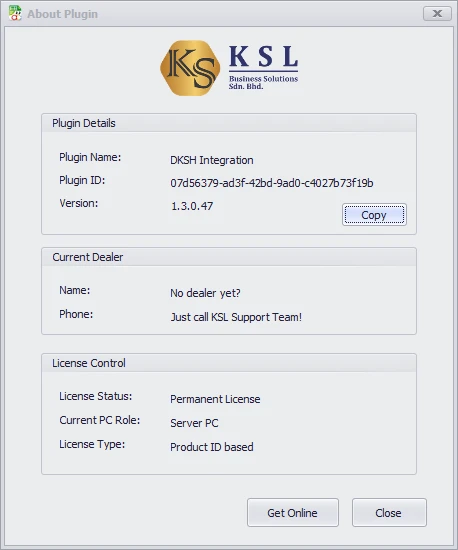
KSL PluginKit License Control dialog inside AutoCount
Activation Steps
💡 Version Updates: Clicking "Get Online" also checks for the latest versions of the Plugin and Windows Background Service, automatically downloading and applying updates whenever a newer build is available.
Pricing & Coverage
- Permanent License: One-time payment, no recurring annual subscription fees.
- Product ID-Based: Covers all account books under your AutoCount Product ID.
- Unlimited Workstations: All client PCs connected to the account book network can use the plugin.
- Contact KSL Support Team or your AutoCount dealer for a formal quotation.
No Trial Available
DKSH Integration connects directly to live distributor APIs requiring authenticated DLP tokens issued by DKSH Malaysia. Consequently, evaluation trials are not supported.
License Transfer
Transferring your license to a new server or upgraded PC is permitted. Contact the KSL Support Team for migration support.
Plugin Setting & Sync Schedule
Go to DKSH Integration > Plugin Setting to configure API credentials, agency item filters, and background posting schedules.
API Credentials & Connection Test
- API Base URL & DLP Token: Enter endpoints and confidential tokens provided directly by DKSH.
- Test Connection: Click to immediately verify network reachability, TLS handshake, and token authorization.
- Distributor Code: Enter your designated DKSH distributor code (e.g.
DKSH-MY01).
Selective Filtering & Scheduling
- Filter by Item Group / Type: Sync agency products only, automatically excluding non-DKSH company inventory.
- Enable Daily Posting: Check this option to activate automatic background syncing and set your scheduled upload time.
- Posting Log Retention: Configure how many months (1 to 120 months) historical posting records are kept. Older logs are automatically purged to optimize database size.
💡 Tip: Schedule during off-peak hours to keep system performance smooth, and ensure the Server PC remains turned on for background syncing.
⚠️ Base UOM Requirement: DKSH agency items must use their smallest Base UOM in AutoCount. DKSH requires whole-number quantities and will reject fractional units.
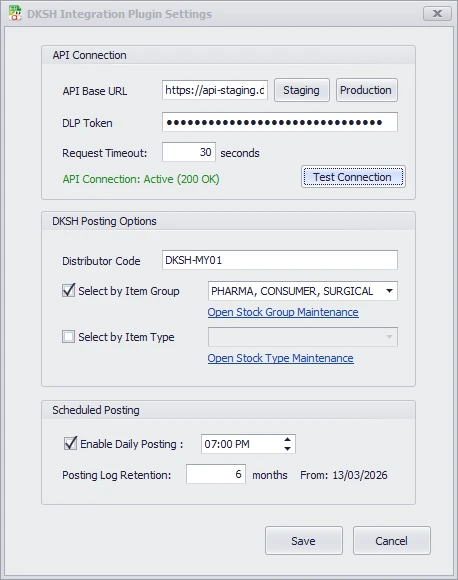
Plugin Setting — API credentials, item filtering, and 15-day rolling schedule
Item Code Mapping & Excel Import
Go to DKSH Integration > Item Code Mapping to match AutoCount stock item codes with official DKSH material codes.
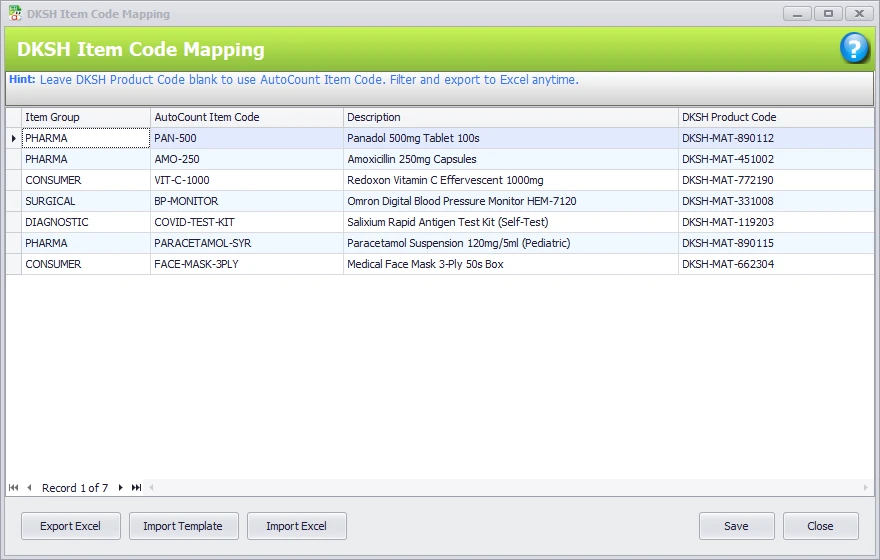
DKSH Item Code Mapping with smart fallback and Excel bulk import/export
- Smart Fallback: Leave blank if your AutoCount item code matches DKSH's product code — the plugin defaults to using the AutoCount code.
- Excel Bulk Import & Export: Export catalog to Excel (
.xlsx), edit DKSH codes offline, and import with automatic format validation. - Item Group Filter: Filter by Stock Item Groups (e.g. Pharma, Consumer, Surgical) for quick navigation.
Posting Log
Go to DKSH Integration > Posting Log to track the real-time status of every sales invoice and credit note submitted to DKSH.
Dashboard Tools & Operational Controls
Categorized Document Workflow
- Pending: Lists newly created or amended Invoices and Credit Notes waiting for the next automated background sync cycle.
- Succeeded: Displays successfully transmitted records with the official DKSH reference number and timestamp proof.
- Failed: Isolates rejected documents highlighted in red so you can resolve errors without sifting through successful data.
Direct API Error Inspector & Drilldown
- Direct Error Inspector: Click any failed row to inspect the raw, unvarnished HTTP error response returned by DKSH.
- Double-Click Drilldown: Double-click any row to immediately open and edit the source Invoice or Credit Note in AutoCount.
Manual Sync & Live Service Heartbeat
- Post Last 15 Days: Click the manual sync button anytime to push the past 15 calendar days immediately on demand.
- Live Service Heartbeat: Top banner displays the host server machine name, Windows background service status, and real-time heartbeat ping.
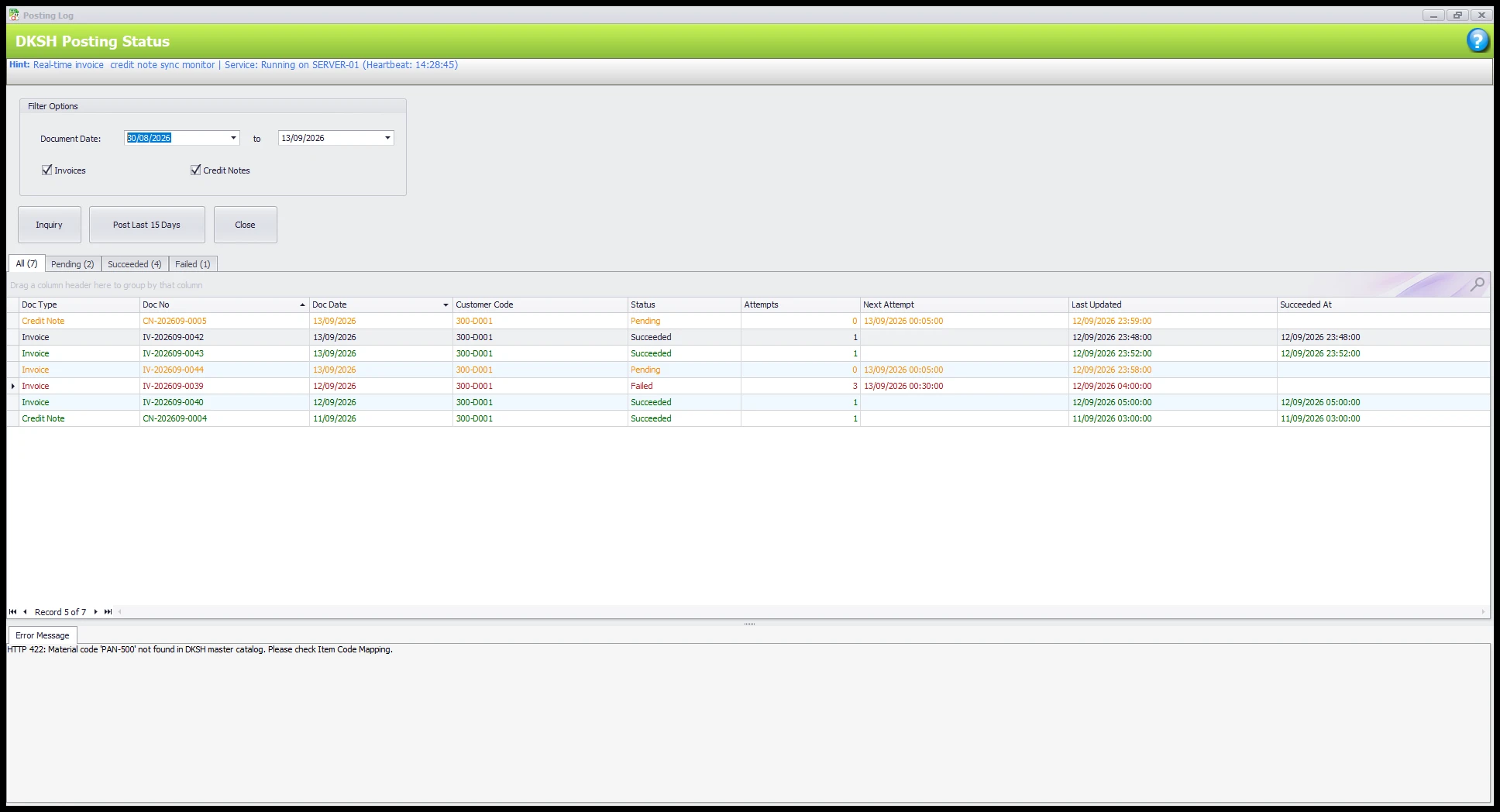
Built-in Data Safeguards & Smart Automations
The DKSH Integration Plugin includes deep architectural safeguards running across AutoCount scripting and the central Server PC background service, ensuring error prevention, data consistency, and 100% DKSH API compliance:
Automatic Base UOM Conversion & Line Aggregation
Sales transactions entered in multiple UOMs (e.g. cartons, packs, boxes) are automatically converted to the smallest Base UOM (Qty × Rate). Multiple invoice line items matching the same DKSH product code are consolidated into a single line, and fractional decimal quantities are strictly blocked to guarantee 100% DKSH API compliance.
Out-of-15-Days Document Warning Dialog
Native AutoCount BeforeSave scripting monitors every Invoice and Credit Note entry in real time. If a document containing DKSH items is dated earlier than the 15-day rolling snapshot cutoff, an immediate alert dialog warns staff upon saving so backdated sales entries are not missed.
Server Service Execution Lock & 25-Min Retry Throttle
The background synchronization service runs strictly on your designated Server PC. SQL database-level transaction locking ensures that only a single sync cycle executes at any given time (preventing race conditions even if users trigger manual sync simultaneously). In the event of temporary network drops or API gateway timeouts, an automatic 25-minute retry throttle prevents rate-limiting and server overload.
Ready to automate your DKSH sales synchronization?
Contact KSL Support Team for licensing, setup assistance, and end-to-end implementation across Malaysia.