
See It In Action
Method 1 — Via Right-Click Menu
The fastest method for processing single documents.
Outstanding Delivery Order
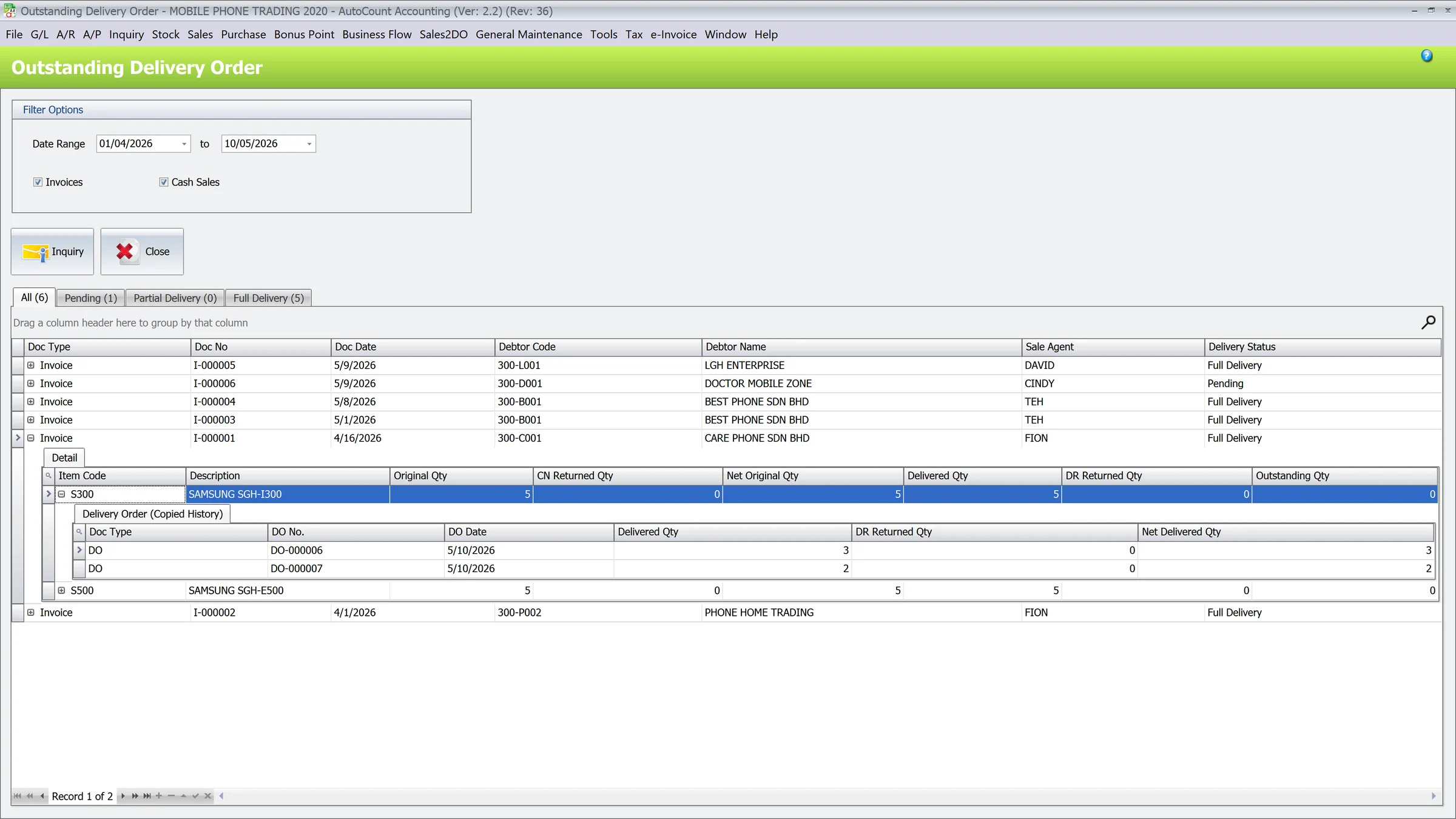
3-tier drill-down dashboard
The Outstanding Delivery Order dashboard provides a real‑time, centralized view of all sales documents that require physical delivery.
Filter Options
- Date Range: Filter documents by their creation date.
- Document Type: Choose to view Invoices, Cash Sales, or both simultaneously.
- Status Tabs: Instantly categorize your view into Pending, Partial Delivery, or Full Delivery status.
The 3-Tier Drill-Down Grid
Expand the + icon on any row to dive deeper.
Master Document (Overview)
- Displays the source document and its overall Delivery Status.
- Drill-Down: Double-click any row to open the source Invoice or Cash Sale.
Item Codes (Quantity Breakdown)
- Net Original Qty: Original Qty - CN Returned Qty.
- Net Delivered Qty: DO Copied Qty - DR Returned Qty.
- Outstanding Qty: The final balance pending delivery (Net Original - Net Delivered).
Copied History (Delivery Orders)
- Expand an item row to see specific Delivery Orders linked to it, including DO Number, Date, and quantities.
- Drill-Down: Double-click any record here to open the target Delivery Order.
Preset "Delivery?" in Stock Item Maintenance
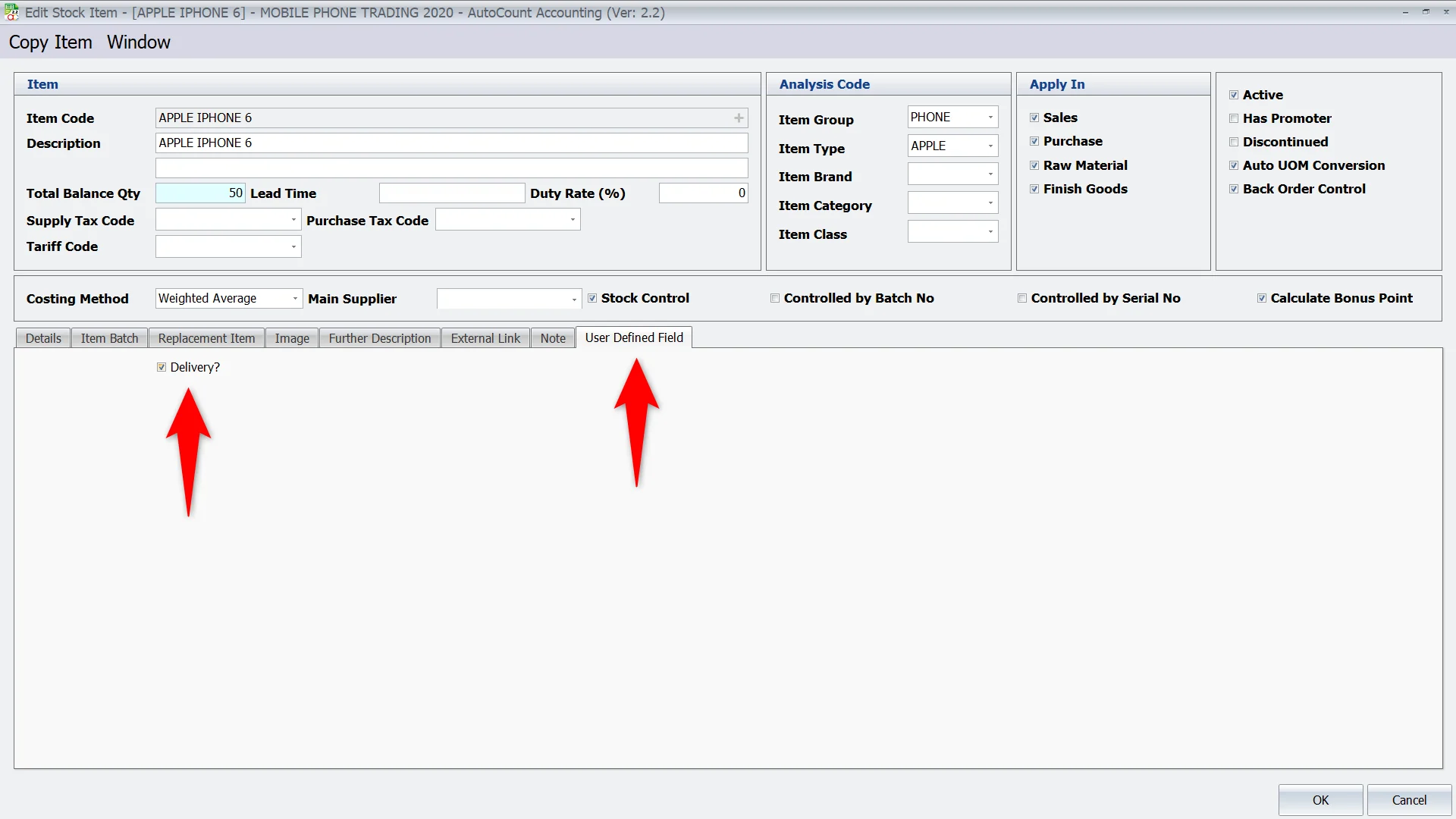
User Defined Field - "Delivery?" checkbox
By presetting the "Delivery?" status, the plugin automatically determines which items should be delivered and tracked in the Outstanding Delivery Order dashboard.
- Ticked: Item requires a Delivery Order and will be tracked for outstanding quantity.
- Unticked: Item is treated as a service or non-physical good and will be ignored by the tracking dashboard.
Upon installing Sales2DO, the Delivery? checkbox for all existing items will be automatically ticked.
Sales2DO Plugin Settings
To configure, go to Sales2DO > Plugin Settings.
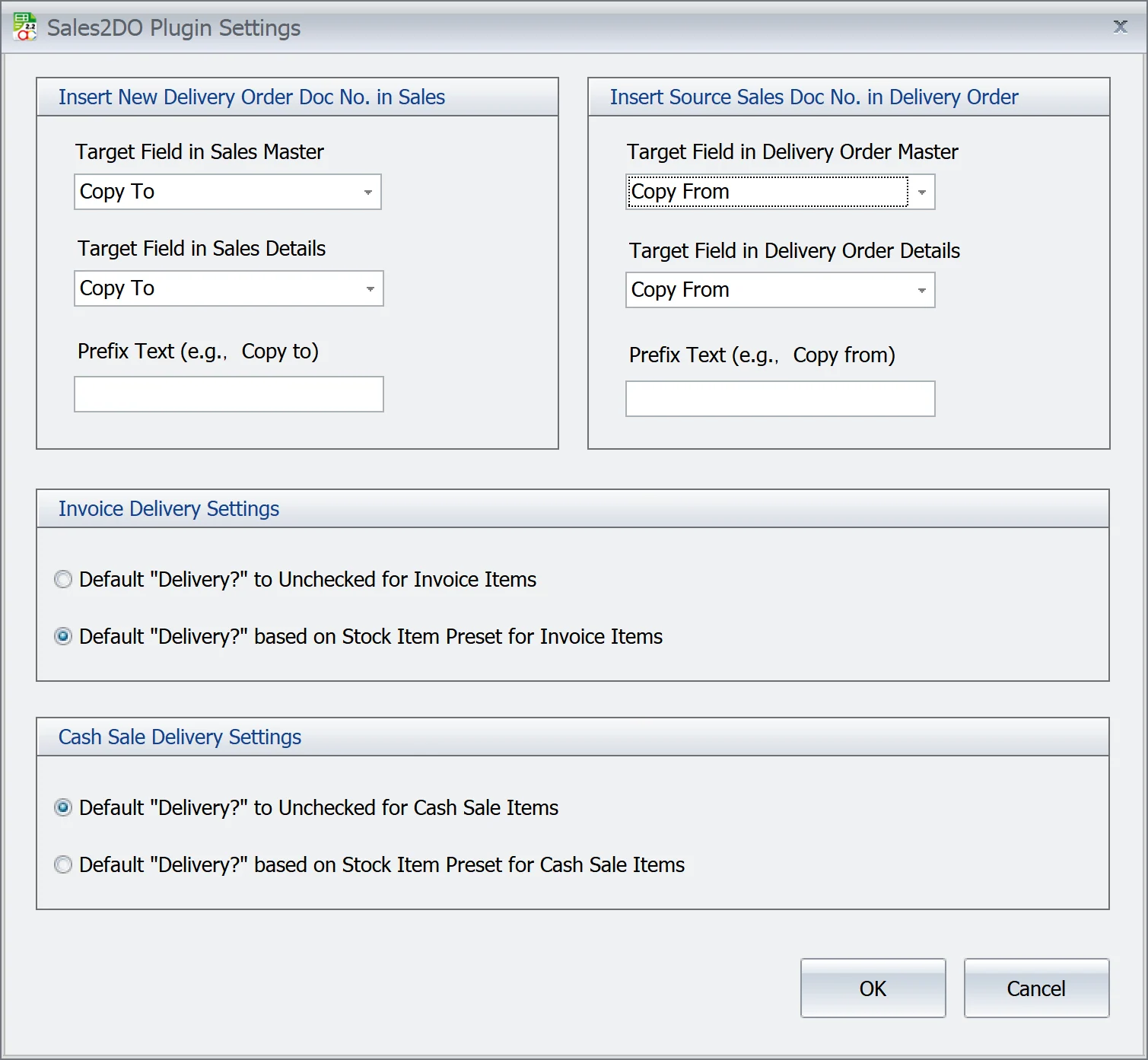
Sales2DO > Plugin Settings
Transfer Document Remark
Automate the cross-referencing of document numbers for a clear audit trail.
- Insert DO No. in Sales (Reverse Trace): Automatically writes the generated Delivery Order number back to the source Invoice or Cash Sale.
- Insert Sales No. in DO (Forward Trace): Copies the original Invoice or Cash Sale number into the newly created Delivery Order.
- Target Field Configuration: Choose whether to insert these numbers into the Master (Documents) or Details (Item Details) fields (e.g., Remark or Description).
- Prefix Text: Add custom prefix text (e.g., "Ref:" or "From:") to label the inserted numbers.
Upon installing Sales2DO, the system automatically creates the "Copy To" (for Sales) and "Copy From" (for DO) User Defined Fields (UDFs). These are set as the default target fields automatically.
Invoice & Cash Sale Delivery Settings
Set the default behavior for the "Delivery?" checkbox during data entry.
- Default "Delivery?" to unchecked: New lines default to "No Delivery", best for "Cash & Carry" workflows.
- Default "Delivery?" based on Stock Item Preset: Inherits the preset defined in Stock Item Maintenance. Recommended for businesses selling both services and physical goods.
Activate Plugin License
Pricing
- Account Book-based.
- 1st Account Book RM600 + 8% SST.
- Add-ons RM300 + 8% SST.
- One-time payment, no yearly fees.
- 1 license covers all PCs per account book network.
Trial
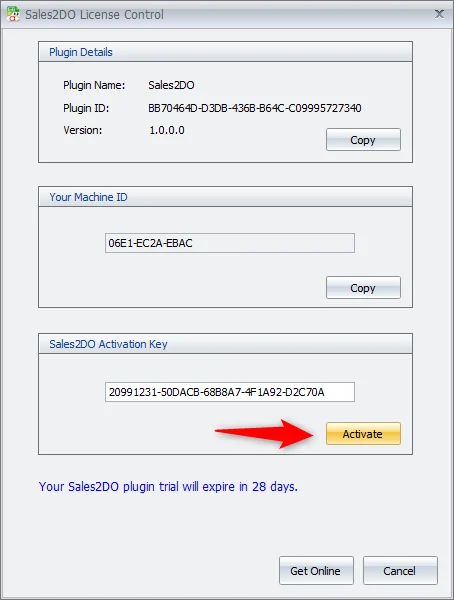
28-day full trial available.
Transfer License
Yes, you can transfer the license to another account book. Please contact the KSLeow Support Team for assistance.
Activation Instructions
Online Activation
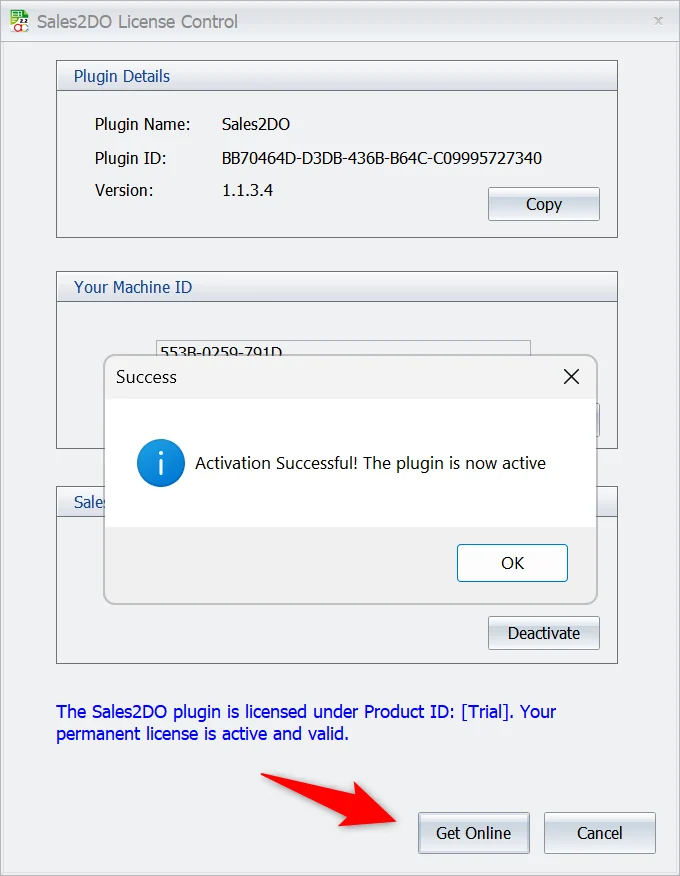
Online Activation - License Control screen
Ensure your device is connected to the internet, then follow these steps:
Contact KSL via WhatsApp at 017-905 2323 or email support@ksleow.com.my once you are ready to activate.
Interested in the Sales2DO plugin?
Contact KSL Business Solutions for pricing, installation, and support across Pahang.